在网上想找一个方便的文件分割工具时,发现并不那么顺手,于是萌生了自己动手开发一个的想法。这个工具仿照了某个现有工具的思路,但并没有实现其全部功能,而是专注于提供稳定高效的核心分割能力。当你面对动辄几十GB的日志文件,用普通文本编辑器打开会直接卡死,又不想费劲上传到Linux服务器处理时,这个用Python写的桌面小工具或许能派上用场。
一、设计思路
开发思路主要从界面视图、用户交互以及核心实现三个层面入手:
- 视图层: 使用
tkinter 构建图形界面,包含文件选择、配置选项、进度条和状态栏。
- 控制层:
TextSplitterApp 类作为控制器,处理用户交互(按钮点击、输入验证)。
- 模型/逻辑层:
split_by_lines_mmap 和 split_by_size_mmap 方法负责核心的数据分割逻辑。
核心技术点分解
mmap(内存映射文件): 这是本工具高性能的关键。它并不将整个文件一次性加载到RAM中,而是建立文件与虚拟内存的映射。这使得程序能够处理远超物理内存大小的文件(例如10GB的日志文件),同时利用操作系统的预读机制来提高处理速度。- 二进制处理: 代码主要以二进制方式读取数据,然后按需解码,这比纯文本模式处理更底层、更灵活,尤其适合处理包含非标准字符的大型文件。
功能逻辑
- 双模式支持:
- 按行分割: 扫描内存映射,寻找换行符
\n,当计数达到设定的阈值后,将当前片段写入新文件。
- 按大小分割: 计算字节偏移量,并包含简单的“行完整性保护”逻辑。即尽量不在一行中间切断,如果分割点不在行尾,则会向后寻找最近的换行符作为实际分割点,以保证分割后每个文件的末尾都是一行完整的记录。
用户体验
- 防呆设计: 在开始处理前,会校验文件路径是否存在、输入数值是否有效。
- 防卡死机制: 处理开始时自动禁用“开始”按钮,防止用户因等待而重复点击导致意外。
- 可视化反馈: 使用
ttk.Progressbar 进度条和状态标签,实时更新处理进度,让用户清晰掌握任务状态。
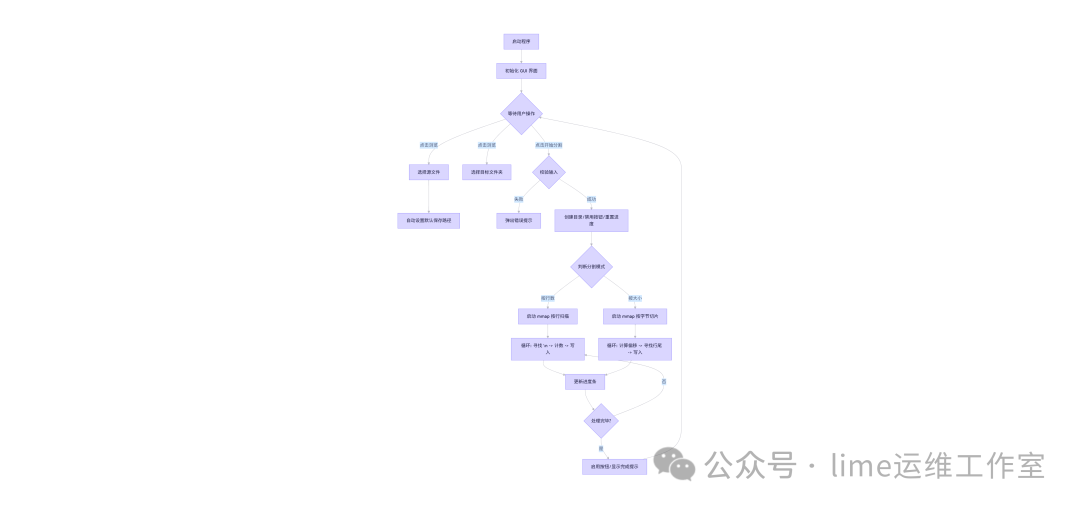
二、核心流程与内存映射
在两个核心分割函数中,都采用了以下模式初始化内存映射:
with open(source, 'r+b') as f:
    with mmap.mmap(f.fileno(), 0, access=mmap.ACCESS_READ) as mmapped_file:
        # 此时 mmapped_file 就像一个巨大的字节数组
        # 可以直接通过索引访问,如 mmapped_file[pos]
按行分割逻辑
- 使用指针
pos 遍历整个内存映射文件。
- 检查当前字节是否为换行符(ASCII 10)。
- 如果是换行符,则行计数器加一。
- 当计数器达到设定值(如1000行),将当前内存片段解码并写入新文件,然后重置计数器和起始指针。
按大小分割逻辑
- 计算目标结束位置
end_pos = pos + limit_bytes。
- 智能截断: 如果
end_pos 不在文件末尾,代码会向后多查找最多1MB的范围,寻找最近的换行符。
- 这样做的目的是防止将一个完整的句子或日志条目切断,保证了分割后每个文件内容的相对完整性。
三、完整实现代码
以下是工具的完整 Python 实现代码。它使用 tkinter 构建了图形界面,并通过内存映射技术高效处理大文件。
import os
import tkinter as tk
from tkinter import filedialog, messagebox, ttk
import mmap

class TextSplitterApp:
    def __init__(self, root):
        self.root = root
        self.root.title("仿 TXT 杀手 - 高性能版")
        self.root.geometry("550x400")

        # --- 变量定义 ---
        self.source_path = tk.StringVar()
        self.target_path = tk.StringVar()
        self.split_mode = tk.StringVar(value="lines")  # 默认按行分割
        self.split_value = tk.StringVar(value="1000")  # 默认值

        self.setup_ui()

    def setup_ui(self):
        # --- 1. 文件选择区域 ---
        frame_file = tk.LabelFrame(self.root, text="文件设置", padx=10, pady=10)
        frame_file.pack(fill="x", padx=10, pady=5)

        # 源文件
        tk.Label(frame_file, text="待分割:").grid(row=0, column=0, sticky="w")
        tk.Entry(frame_file, textvariable=self.source_path, width=40).grid(row=0, column=1, padx=5)
        tk.Button(frame_file, text="浏览", command=self.browse_source).grid(row=0, column=2)

        # 目标文件夹
        tk.Label(frame_file, text="保存到:").grid(row=1, column=0, sticky="w", pady=5)
        tk.Entry(frame_file, textvariable=self.target_path, width=40).grid(row=1, column=1, padx=5, pady=5)
        tk.Button(frame_file, text="浏览", command=self.browse_target).grid(row=1, column=2)

        # --- 2. 分割设置区域 ---
        frame_config = tk.LabelFrame(self.root, text="分割设置", padx=10, pady=10)
        frame_config.pack(fill="x", padx=10, pady=5)

        # 模式选择 (单选框)
        tk.Radiobutton(frame_config, text="按行数分割", variable=self.split_mode, value="lines",
                       command=self.toggle_mode).grid(row=0, column=0, sticky="w")
        tk.Radiobutton(frame_config, text="按大小分割 (MB)", variable=self.split_mode, value="size",
                       command=self.toggle_mode).grid(row=1, column=0, sticky="w")

        # 参数输入
        tk.Label(frame_config, text="每份数量:").grid(row=0, column=1, sticky="e")
        self.entry_value = tk.Entry(frame_config, textvariable=self.split_value, width=15)
        self.entry_value.grid(row=0, column=2, sticky="w", padx=5)

        tk.Label(frame_config, text="说明:按行请输入行数,按大小请输入 MB", fg="gray").grid(row=1, column=1,
                                                                                          columnspan=2, sticky="w")

        # --- 3. 操作按钮区域 ---
        frame_action = tk.Frame(self.root, pady=10)
        frame_action.pack(fill="x", padx=10)

        self.btn_start = tk.Button(frame_action, text="开始分割", bg="#d9ead3", font=("Arial", 10, "bold"),
                                   command=self.start_splitting)
        self.btn_start.pack(side="left", padx=5)

        self.btn_quit = tk.Button(frame_action, text="退出", command=self.root.quit)
        self.btn_quit.pack(side="right", padx=5)

        # --- 4. 状态栏/进度条 ---
        self.progress = ttk.Progressbar(self.root, orient="horizontal", length=500, mode="determinate")
        self.progress.pack(pady=10)

        self.status_label = tk.Label(self.root, text="就绪", fg="blue", anchor="w")
        self.status_label.pack(fill="x", padx=10)

    def toggle_mode(self):
        """切换模式时重置默认值"""
        if self.split_mode.get() == "lines":
            self.split_value.set("1000")
        else:
            self.split_value.set("5")

    def browse_source(self):
        filename = filedialog.askopenfilename(filetypes=[("Text Files", "*.txt"), ("All Files", "*.*")])
        if filename:
            self.source_path.set(filename)
            # 默认保存到源文件所在目录的 split 文件夹
            default_target = os.path.join(os.path.dirname(filename), "split_result")
            self.target_path.set(default_target)

    def browse_target(self):
        dirname = filedialog.askdirectory()
        if dirname:
            self.target_path.set(dirname)

    def start_splitting(self):
        source = self.source_path.get()
        target = self.target_path.get()
        value = self.split_value.get()

        # 基础校验
        if not source or not os.path.exists(source):
            messagebox.showerror("错误", "请选择有效的源文件")
            return
        if not target:
            messagebox.showerror("错误", "请选择保存目录")
            return
        if not value.isdigit() or int(value) <= 0:
            messagebox.showerror("错误", "分割数量必须是大于 0 的数字")
            return

        # 创建目标目录
        if not os.path.exists(target):
            os.makedirs(target)

        # 禁用按钮防止重复点击
        self.btn_start.config(state="disabled")
        self.status_label.config(text="正在处理...", fg="blue")
        self.root.update()

        try:
            limit = int(value)
            if self.split_mode.get() == "lines":
                self.split_by_lines_mmap(source, target, limit)
            else:
                self.split_by_size_mmap(source, target, limit)

            self.status_label.config(text="分割完成!", fg="green")
            messagebox.showinfo("成功", f"文件已成功分割并保存至:\n{target}")
        except Exception as e:
            messagebox.showerror("错误", f"发生错误:{str(e)}")
            self.status_label.config(text="出错", fg="red")
        finally:
            self.btn_start.config(state="normal")

    def split_by_lines_mmap(self, source, target_dir, lines_per_file):
        """使用 mmap 按行数分割 - 高性能版本"""
        file_size = os.path.getsize(source)
        self.progress['maximum'] = file_size

        file_count = 1
        line_count = 0
        current_start = 0
        out_file = None

        with open(source, 'r+b') as f:
            with mmap.mmap(f.fileno(), 0, access=mmap.ACCESS_READ) as mmapped_file:
                pos = 0
                while pos < file_size:
                    # 查找换行符
                    if mmapped_file[pos] == 10:  # \n 的 ASCII 码
                        line_count += 1

                        # 达到指定行数,写入文件
                        if line_count >= lines_per_file:
                            if out_file is None:
                                file_path = os.path.join(target_dir, f"part_{file_count:04d}.txt")
                                out_file = open(file_path, 'w', encoding='utf-8')

                            # 写入从 current_start 到 pos+1 的内容
                            chunk = mmapped_file[current_start:pos + 1]
                            try:
                                out_file.write(chunk.decode('utf-8'))
                            except UnicodeDecodeError:
                                # 如果解码失败,尝试忽略错误
                                out_file.write(chunk.decode('utf-8', errors='ignore'))

                            out_file.close()
                            file_count += 1
                            line_count = 0
                            current_start = pos + 1
                            out_file = None

                    pos += 1

                    # 每 100MB 更新一次进度
                    if pos % (100 * 1024 * 1024) < 1024:
                        self.progress['value'] = pos
                        self.root.update_idletasks()

                # 处理剩余内容
                if current_start < file_size:
                    file_path = os.path.join(target_dir, f"part_{file_count:04d}.txt")
                    with open(file_path, 'w', encoding='utf-8') as out_file:
                        chunk = mmapped_file[current_start:file_size]
                        try:
                            out_file.write(chunk.decode('utf-8'))
                        except UnicodeDecodeError:
                            out_file.write(chunk.decode('utf-8', errors='ignore'))

        self.progress['value'] = file_size
        self.root.update_idletasks()

    def split_by_size_mmap(self, source, target_dir, mb_per_file):
        """使用 mmap 按大小分割 - 高性能版本"""
        limit_bytes = mb_per_file * 1024 * 1024
        file_size = os.path.getsize(source)

        self.progress['maximum'] = file_size

        file_count = 1
        pos = 0

        with open(source, 'rb') as f:
            with mmap.mmap(f.fileno(), 0, access=mmap.ACCESS_READ) as mmapped_file:
                while pos < file_size:
                    # 计算本次读取的结束位置
                    end_pos = min(pos + limit_bytes, file_size)

                    # 如果是文本模式且不是文件末尾,尝试找到行边界
                    if end_pos < file_size:
                        # 向后查找换行符,确保不切断一行
                        search_end = min(end_pos + 1024 * 1024, file_size)  # 最多向后找 1MB
                        newline_pos = mmapped_file.find(b'\n', end_pos, search_end)
                        if newline_pos != -1:
                            end_pos = newline_pos + 1

                    # 写入新文件
                    file_path = os.path.join(target_dir, f"part_{file_count:04d}.txt")
                    with open(file_path, 'wb') as out_file:
                        out_file.write(mmapped_file[pos:end_pos])

                    pos = end_pos
                    file_count += 1

                    # 更新进度
                    self.progress['value'] = pos
                    self.root.update_idletasks()

        self.progress['value'] = file_size
        self.root.update_idletasks()

if __name__ == "__main__":
    root = tk.Tk()
    app = TextSplitterApp(root)
    root.mainloop()
四、实际测试截图
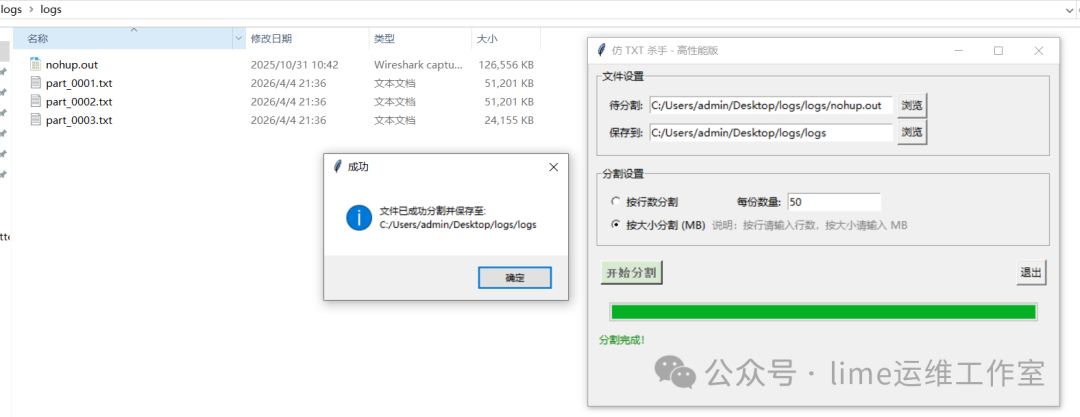
按指定文件大小分割(50MB/份)
工具运行后,成功将一个大文件按指定大小分割为多个部分。
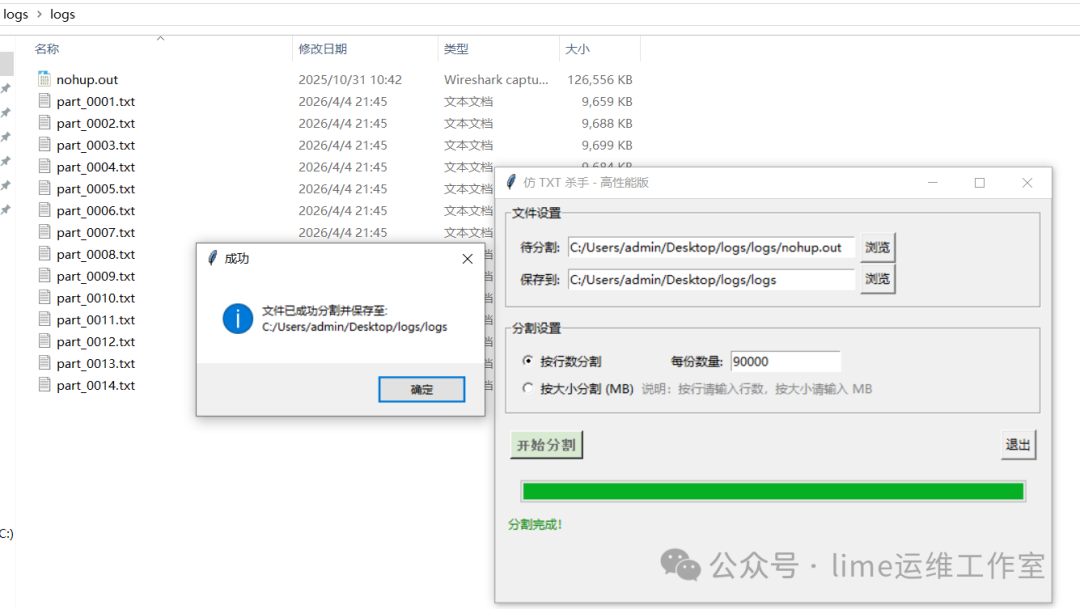
按行数分割(每份90000行)
同样,按行数分割模式也能准确地将文件切割成多个包含指定行数的子文件。
五、总结
这个使用 Python 和 tkinter 开发的 GUI 工具,核心优势在于利用了 mmap 内存映射技术,使其能够高效、低内存地处理超大型文本文件。无论是按行分割还是按大小分割,都考虑到了实际使用中的细节,比如行的完整性保护。对于需要在 Windows 本地快速处理大日志文件而又不想动用重型武器(如上传到服务器)的场景,它是一个非常轻量且实用的选择。如果你对 Python 在GUI开发或文件处理方面的其他技巧感兴趣,欢迎到云栈社区与更多开发者交流探讨。
 发表于 2026-4-5 04:11:32
|
查看: 215|
回复: 0
发表于 2026-4-5 04:11:32
|
查看: 215|
回复: 0

