本文介绍了使用工业树莓派 CM0 NANO 单板计算机,结合 OpenCV 人脸识别和 PWM 舵机控制,实现一个完整智能门禁系统的项目设计。内容涵盖硬件连接、舵机控制、人脸识别、网页前后端开发、流程图、完整代码和效果演示,为在边缘AI设备上快速开发应用提供了参考。
项目介绍
项目主要分为以下三个部分:
- 准备工作:硬件连接、OpenCV 安装、人脸识别模型获取、训练图像准备等。
- 舵机控制:PWM输出、舵机转速和角度控制、代码实现及效果演示。
- 门禁系统集成:完整的文件目录、系统流程图、前后端代码实现及最终效果。
准备工作
准备工作包括硬件连接、虚拟环境创建、OpenCV 安装、模型下载和图像训练等步骤。
硬件连接
首先,确保设备可以正常连接WiFi实现无线通信,并使用 Micro-USB 数据线为设备供电。
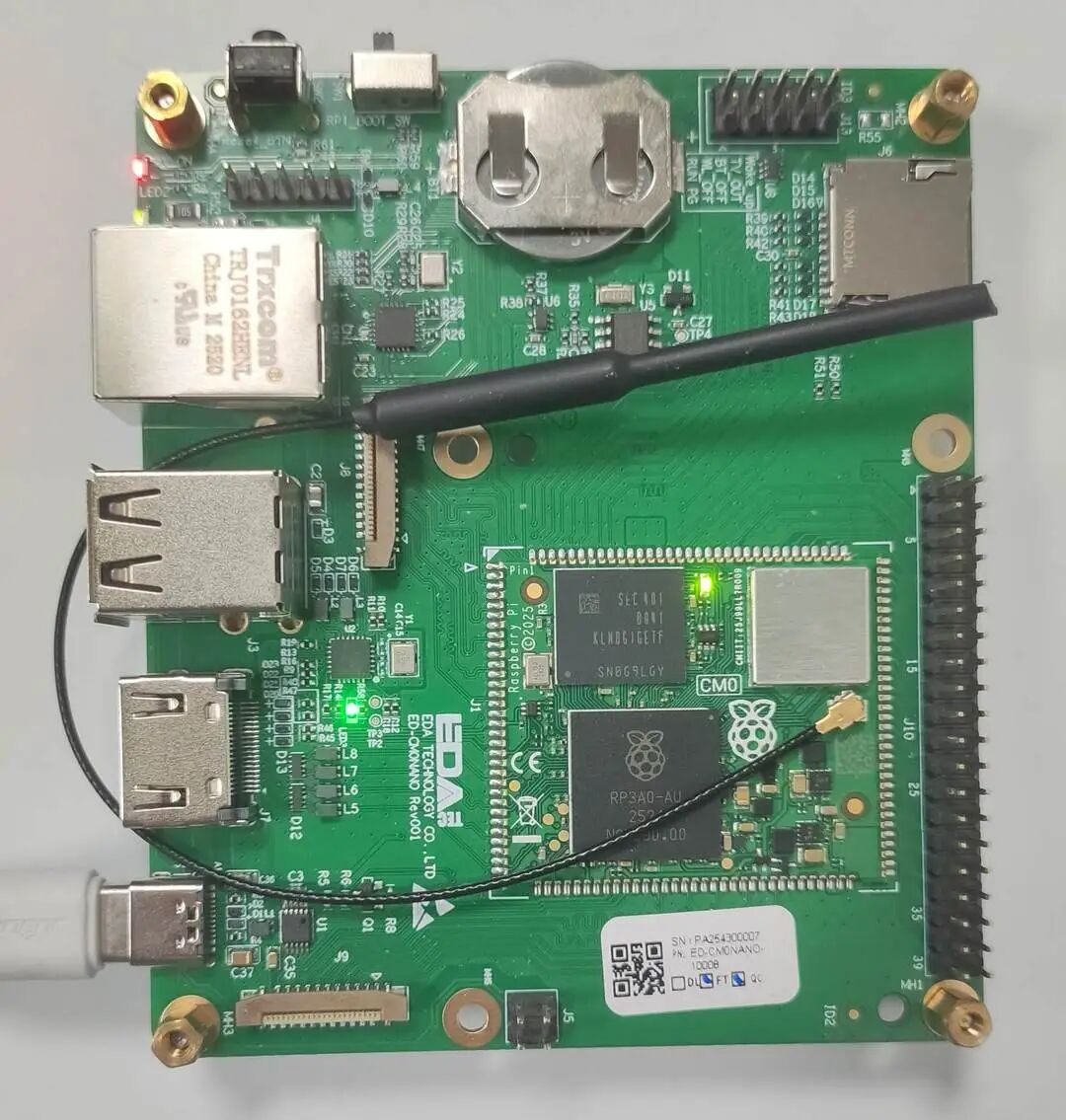
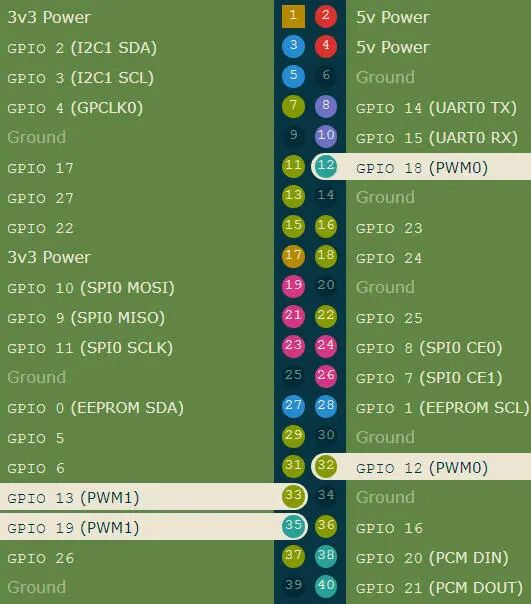
根据板载的 40pin GPIO 引脚定义,驱动舵机需要使用支持 PWM 输出的物理引脚。在本项目中,我们使用物理引脚 12,其对应的 BCM 引脚编号为 18。你可以在 树莓派引脚定义网站 上查看详细的引脚图。
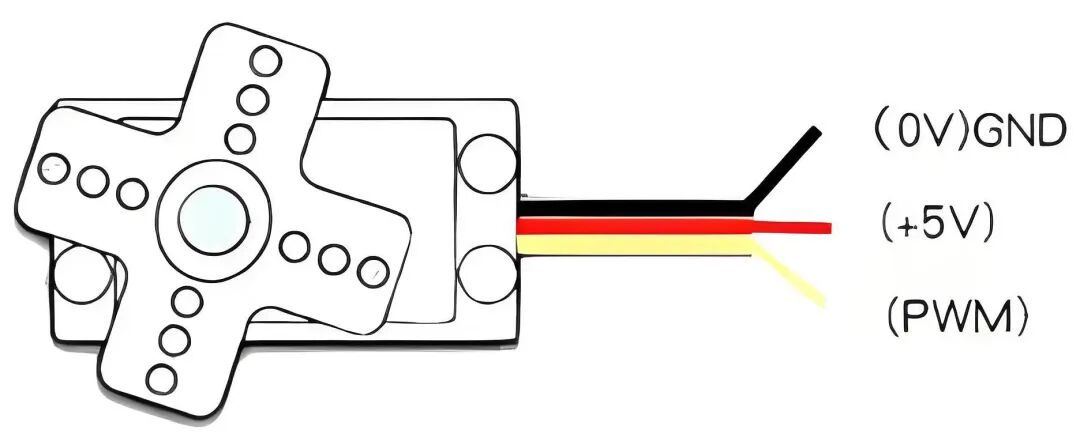
舵机(以SG90为例)通常有三根线:信号线(黄色)、电源线(红色)和地线(棕色)。连接方式如下:
| Raspberry Pi |
SG90 |
描述 |
| GPIO18 (Pin12) |
S (Yellow) |
信号线 |
| 5V (Pin2) |
5V (Red) |
电源 |
| GND (Pin6) |
GND (Brown) |
地线 |
OpenCV 安装
建议在虚拟环境中安装OpenCV,以方便管理依赖。
-
创建并激活虚拟环境
mkdir ~/cv && cd ~/cv    # 创建 cv 文件夹,便于管理
python3 -m venv venv     # 创建虚拟环境 venv
source venv/bin/activate # 激活虚拟环境 venv
-
安装 numpy 和 opencv
pip install -U pip numpy                         # 安装 numpy
pip install opencv-python opencv-contrib-python  # opencv 主模块及 contrib
-
验证安装
python3 -c "import cv2,sys,numpy;print('OpenCV:',cv2.__version__,'NumPy:',numpy.__version__)"
更多关于OpenCV的信息,可以访问其 官方网站。
人脸识别
本项目使用OpenCV进行人脸识别,流程包括:注册并训练目标人脸,使用 YuNet 模型检测人脸,再结合 sface 模型进行特征匹配与识别。
模型文件可以从OpenCV Zoo获取。这个在 人工智能 领域广泛应用的开源模型库,为我们提供了可靠的预训练模型。
-
模型获取
下载所需的人脸检测和识别模型文件。
wget https://github.com/opencv/opencv_zoo/raw/main/models/face_detection_yunet/face_detection_yunet_2023mar.onnx
wget https://github.com/opencv/opencv_zoo/raw/main/models/face_recognition_sface/face_recognition_sface_2021dec.onnx
下载后,请将文件存放在 ./model 目录下。
-
训练图片
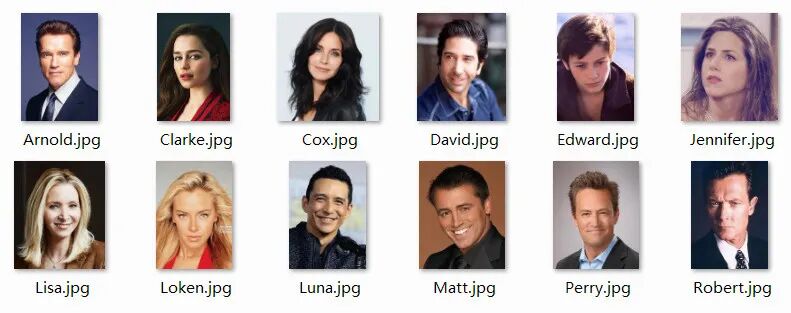
准备用于注册的人脸图片。建议将图片裁剪至合适大小,并以对应的人名作为文件名(例如 Edward.jpg),然后放置在 ./face 文件夹中。
舵机控制
我们利用树莓派板载 GPIO 的 PWM 功能,来驱动和控制 SG90 舵机的旋转速度和角度。
代码实现
在终端执行 touch servo360.py 新建程序文件,并添加以下代码:
import sys, time
import RPi.GPIO as GPIO

GPIO_PIN  = 18
FREQ      = 50
CENTER    = 7.5
RANGE     = 2.5
# --------- Parameters ---------
SPEED_DPS = 480              # 实测:每秒 480 度
PWM_DEAD  = 0.05             # 停转
# ----------------------------
def duty(speed):
    return CENTER + max(-1, min(1, speed)) * RANGE

def rotate(target_deg, speed=1.0):
    """
    target_deg : 角度,负值反转
    speed      : 0~1,默认全速
    """
    if not target_deg:
        return
    direction = 1 if target_deg > 0 else -1
    run_speed = speed * direction
    run_time  = abs(target_deg) / (SPEED_DPS * speed)   # 时长
    pwm = GPIO.PWM(GPIO_PIN, FREQ)
    pwm.start(0)
    pwm.ChangeDutyCycle(duty(run_speed))
    time.sleep(run_time)
    pwm.ChangeDutyCycle(CENTER)   # 停
    time.sleep(PWM_DEAD)
    pwm.stop()

if __name__ == '__main__':
    if len(sys.argv) < 2:
        print("缺少角度"); sys.exit(1)
    deg = float(sys.argv[1])
    GPIO.setmode(GPIO.BCM)
    GPIO.setup(GPIO_PIN, GPIO.OUT)
    try:
        rotate(deg)
    finally:
        GPIO.cleanup()
保存代码。这是一个典型的在树莓派上进行硬件交互的 开源实战 示例。
效果演示

在终端执行指令 python servo360.py 90,舵机将逆时针转动 90 度。
门禁系统
在完成人脸识别和舵机控制的基础上,我们将它们集成起来,实现完整的智能门禁系统。
文件目录
项目的整体文件结构如下:
~/AI/FaceRecognition $ tree
.
├── access.names
├── app.py
├── face
│   ├── Arnold.jpg
│   ├── Clarke.jpg
│   ├── Perry.jpg
│   └── Robert.jpg
├── model
│   ├── face_detection_yunet_2023mar.onnx
│   ├── face_recognition_sface_2021dec.onnx
│   └── face_registry.pkl
├── static
│   └── result.jpg
└── templates
    └── index.html
流程图
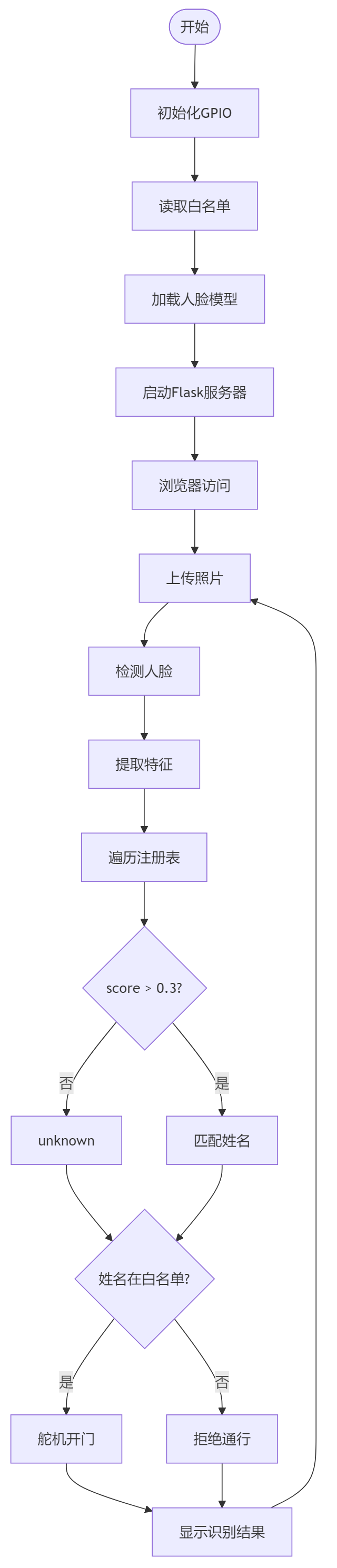
系统的工作流程如下图所示:
代码实现
系统包含三个核心代码文件:./access.names 是白名单,./app.py 是 Flask 服务器后端,./templates/index.html 是网页前端。
- Flask 后端 (app.py)
在终端执行 touch app.py 新建文件,并添加以下代码:
#!/usr/bin/env python3
import os, cv2, numpy as np, pickle, time
from pathlib import Path
from flask import Flask, request, jsonify, render_template, url_for
import RPi.GPIO as GPIO
import threading
PIN_SERVO = 18
FREQ = 50
GPIO.setmode(GPIO.BCM)
GPIO.setup(PIN_SERVO, GPIO.OUT)
pwm = GPIO.PWM(PIN_SERVO, FREQ)
pwm.start(0)
读取白名单
ACCESS_LIST = set(line.strip() for line in open('access.names') if line.strip())
---------- 人脸模型 ----------
detector = cv2.FaceDetectorYN_create("model/face_detection_yunet_2023mar.onnx", "", (320, 320))
recognizer = cv2.FaceRecognizerSF_create("model/face_recognition_sface_2021dec.onnx", "")
registry = pickle.loads(Path("model/face_registry.pkl").read_bytes()) if Path("model/face_registry.pkl").exists() else {}
def rotate(angle, speed=480):
duty = 2.5 if angle > 0 else 12.5
pwm.ChangeDutyCycle(duty)
time.sleep(abs(angle) / speed)
pwm.ChangeDutyCycle(0)
def door_cycle():
rotate(90); time.sleep(3); rotate(-90) # 门禁控制
---------- Flask ----------
app = Flask(name)
@app.route('/')
def index():
return render_template('index.html')
@app.route('/upload', methods=['POST'])
def upload():
file = request.files['image']
img = cv2.imdecode(np.frombuffer(file.read(), np.uint8), cv2.IMREAD_COLOR)
h, w = img.shape[:2]
detector.setInputSize((w, h))
faces = detector.detect(img)[1]
name, score = "Unknown", 0.0
if faces is not None:
    face = faces[0]
    aligned = recognizer.alignCrop(img, face)
    feat    = recognizer.feature(aligned)
    for reg_name, reg_feat in registry.items():
        s = recognizer.match(feat, reg_feat, cv2.FaceRecognizerSF_FR_COSINE)
        if s > score:
            score, name = s, reg_name
    if score < 0.3:          # 识别阈值
        name = "Unknown"

# 门禁动作
if name != "Unknown" and name in ACCESS_LIST:
    threading.Thread(target=door_cycle, daemon=True).start()
    tip = f"{name} 请通行"
else:
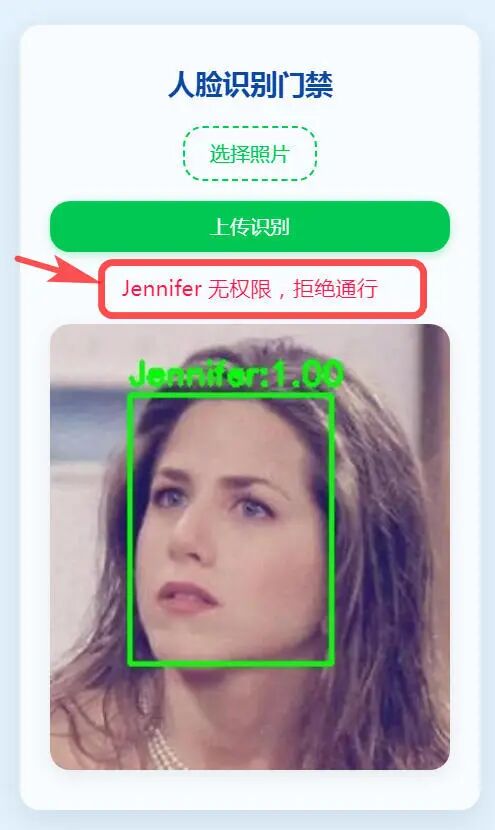
    tip = f"{name} 无权限,拒绝通行"

# 保存识别结果
if faces is not None:
    x, y, w_box, h_box = map(int, face[:4])
    cv2.rectangle(img, (x, y), (x + w_box, y + h_box), (0, 255, 0), 2)
    cv2.putText(img, f"{name}:{score:.2f}", (x, y - 6),
                cv2.FONT_HERSHEY_SIMPLEX, 0.6, (0, 255, 0), 2)
out_path = "./static/result.jpg"
cv2.imwrite(out_path, img)

return jsonify(name=name, score=round(score, 3), tip=tip,
               result_url=url_for('static', filename='result.jpg'))
---------- 退出 ----------
import atexit
atexit.register(lambda: (pwm.stop(), GPIO.cleanup()))
if name == 'main':
app.run(host='0.0.0.0', port=5000, debug=False)
*   **Web 前端 (index.html)**
在 `./templates` 目录下执行 `touch index.html` 新建文件,并添加以下代码:
```html
<!doctype html>
<html lang="zh">
<head>
  <meta charset="utf-8">
  <title>树莓派门禁</title>
  <meta name="viewport" content="width=device-width,initial-scale=1">
  <style>
    :root{
      --accent:#00c853;
      --danger:#ff1744;
      --bg:#e3f2fd;
      --card:rgba(255,255,255,.75);
      --radius:16px;
      --trans:.35s cubic-bezier(.4,0,.2,1)
    }
    body{margin:0;height:100vh;display:flex;align-items:center;justify-content:center;background:var(--bg);font-family:system-ui,Arial}
    #card{width:320px;padding:32px 24px;background:var(--card);backdrop-filter:blur(12px);border-radius:var(--radius);box-shadow:0 8px 32px rgba(0,0,0,.1);text-align:center;transition:var(--trans)}
    h2{margin:0 0 20px;font-size:22px;font-weight:600;color:#0d47a1}
    input[type=file]{display:none}
    label{display:inline-block;padding:10px 20px;border:2px dashed var(--accent);border-radius:var(--radius);cursor:pointer;color:var(--accent);transition:var(--trans)}
    label:hover{background:var(--accent);color:#fff}
    button{margin-top:16px;padding:10px 0;width:100%;border:none;border-radius:var(--radius);background:var(--accent);color:#fff;font-size:16px;cursor:pointer;transition:var(--trans);box-shadow:0 2px 8px rgba(0,200,83,.3)}
    button:active{transform:scale(.97)}
    .status{margin-top:18px;font-size:17px;height:24px;opacity:0;transition:var(--trans)}
    .status.show{opacity:1}
    .status.ok{color:var(--accent)}
    .status.no{color:var(--danger)}
    img{width:100%;border-radius:var(--radius);margin-top:16px;box-shadow:0 4px 16px rgba(0,0,0,.08);display:none}
  </style>
</head>
<body>
  <div id="card">
    <h2>人脸识别门禁</h2>
    <input type="file" id="f" accept="image/*">
    <label for="f">选择照片</label>
    <button onclick="up()">上传识别</button>
    <div id="s" class="status"></div>
    <img id="i">
  </div>
  <script>
    async function up(){
      const file=f.files[0];
      if(!file) return alert('请选择图片');
      s.className='status show';s.textContent='识别中…';
      const fd=new FormData();fd.append('image',file);
      const r=await(fetch('/upload',{method:'POST',body:fd}).then(x=>x.json()));
      s.textContent=r.tip;
      s.classList.toggle('ok',!r.tip.includes('拒绝'));
      s.classList.toggle('no',r.tip.includes('拒绝'));
      i.src=r.result_url+'?t='+Date.now();i.style.display='block';
      setTimeout(()=>{s.textContent='已关门,等待识别';i.style.display='none'},3000)
    }
  </script>
</body>
</html>
- 白名单 (access.names)
在终端执行 touch access.names 新建文件,添加允许通行的人名列表,每行一个。
Linda
Edward
Clarke
效果演示
- 启动服务:在终端执行指令
python app.py 运行程序。
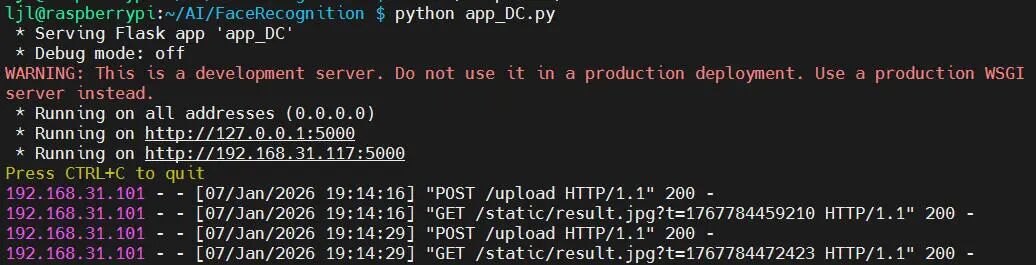
- 访问网页:终端会打印 Web 服务器地址,例如
http://192.168.31.117:5000/。在浏览器中打开此地址。
- 识别操作:
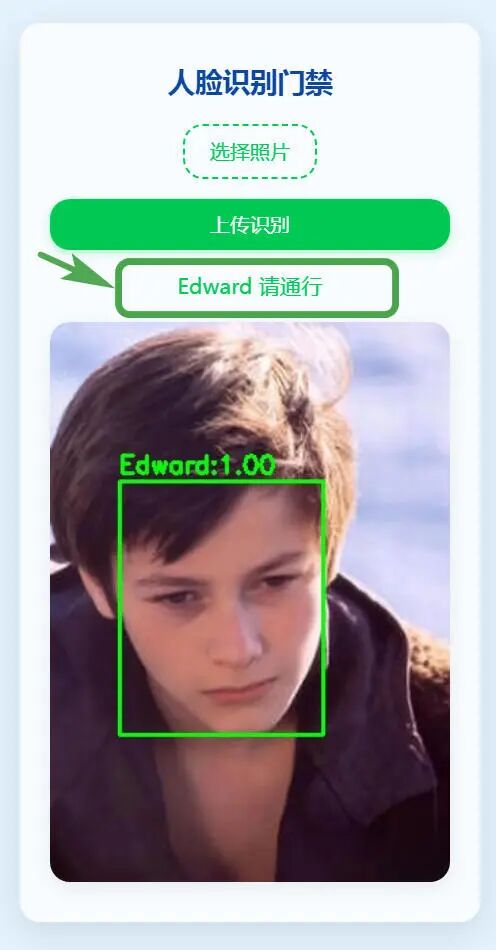
- 点击“选择照片”按钮,加载待识别的人脸图片。
- 点击“上传识别”按钮,系统将立即显示识别结果和是否允许通行。

- 门禁动作:
- 如果识别出的人脸在白名单中,舵机会逆时针转动90度,模拟开门。
- 等待3秒钟后,舵机顺时针转回90度,模拟关门。
- 同时,网页前端的状态会更新为“已关门,等待识别”。

动态效果:
总结
本项目详细演示了如何利用树莓派 CM0 NANO 这款低成本、小体积的边缘计算设备,结合成熟的OpenCV人脸识别技术和简单的舵机控制,快速搭建一个功能完整的智能门禁原型系统。从环境部署、模型获取到关键代码解析和效果演示,为开发者提供了一个在资源受限的嵌入式平台上实现AI应用的清晰范例。
如果你对这类结合硬件与AI的实战项目感兴趣,欢迎在 云栈社区 与更多开发者交流探讨。
 发表于 2026-1-17 04:45:43
|
查看: 448|
回复: 0
发表于 2026-1-17 04:45:43
|
查看: 448|
回复: 0

