你是否厌倦了让用户面对冰冷的、只有文字的命令行工具?当用户抱怨“看不懂”、“太复杂”、“能不能加个界面”时,传统方案往往令人头疼:用Tkinter或PyQt开发桌面应用太重,用Web框架又需要前端知识,难道只能放弃交互体验吗?
当然不是。今天我们就来聊聊 Textual,这个能让你用纯Python代码构建美观、交互式终端应用(TUI - Text User Interface)的利器。无需HTML、CSS、JavaScript基础,也无需打包成复杂的可执行文件,直接在终端里运行,却能带来颜值与功能并存的体验。
其核心价值在于,它让你能用编写Python的方式为命令行工具打造GUI。通过组件化开发、CSS样式支持以及原生的异步支持,让CLI工具也能拥有媲美图形界面的用户体验。如果你正在寻找提升命令行工具交互性的方法,不妨在云栈社区的Python板块与其他开发者交流更多实用技巧。
一、为何选择Textual?核心优势分析
在深入代码之前,我们先看看传统方法面临哪些痛点。
传统方案的局限
# 方案1:纯 print + input(交互体验差)
print("请选择操作:1.查询 2.设置 3.退出")
choice = input("请输入序号:")
# 问题:无实时反馈、无法动态刷新、样式单一

# 方案2:curses 库(学习成本高)
import curses
def main(stdscr):
    curses.init_pair(1, curses.COLOR_GREEN, curses.COLOR_BLACK)
    stdscr.addstr(0, 0, "Hello", curses.color_pair(1))
# 问题:API底层、跨平台兼容性差、代码冗长
Textual 带来的改变
与上述方案相比,Textual 提供了现代化、高效的开发体验:
| 优势 |
说明 |
| ✅ 组件化开发 |
Button、Label、Input 等现成组件,像搭积木一样构建界面,类似Web开发体验。 |
| ✅ CSS 样式支持 |
用熟悉的CSS语法控制颜色、布局、动画,实现样式与业务逻辑的清晰分离。 |
| ✅ 异步原生支持 |
基于 asyncio 构建,轻松处理网络请求、文件I/O等异步任务,不阻塞界面。 |
| ✅ 跨平台一致 |
在Windows Terminal、iTerm2、Linux终端等环境下,显示效果保持统一,无需额外适配。 |
直观的代码对比
让我们通过一个进度条的例子,感受一下Textual的简洁:
# 传统方案:使用curses实现动态进度条(约30行)
import curses, time
def show_progress(stdscr):
    curses.curs_set(0)
    for i in range(101):
        stdscr.addstr(0, 0, f"Progress: {i}%")
        stdscr.addstr(1, 0, "[" + "#"*(i//2) + "-"*(50-i//2) + "]")
        stdscr.refresh()
        time.sleep(0.05)
# 需要手动处理刷新、颜色初始化、终端清理等繁琐细节...

# Textual 方案:5行核心代码实现相同功能
from textual.app import App
from textual.widgets import ProgressBar

class ProgressApp(App):
    def on_mount(self):
        pb = ProgressBar(total=100)
        self.mount(pb)
        self.set_interval(0.05, lambda: pb.update(progress=pb.progress+1))

ProgressApp().run()
💡 提示:在运行Textual应用时,可以按 Ctrl+C 或 q 键退出。Textual默认支持完整的键盘导航,大多数操作无需鼠标。
二、快速上手:安装与第一个应用
安装Textual
通过pip可以轻松安装,国内用户建议使用镜像加速。
# 基础安装
pip install textual

# 国内镜像加速(推荐)
pip install textual -i https://pypi.tuna.tsinghua.edu.cn/simple

# 开发模式安装(包含开发工具和示例)
pip install textual[dev]
第一个Textual应用:1分钟跑起来
创建一个名为 hello.py 的文件,输入以下代码:
# hello.py
from textual.app import App
from textual.widgets import Header, Footer, Label

class HelloApp(App):
    CSS = """
    Label {
        align: center middle;
        color: cyan;
        text-style: bold;
    }
    """

    def compose(self):
        yield Header()
        yield Label("🎉 欢迎使用 Textual!")
        yield Footer()

    def on_mount(self):
        self.set_interval(2, self.toggle_color)

    def toggle_color(self):
        label = self.query_one(Label)
        label.styles.color = "green" if label.styles.color == "cyan" else "cyan"

if __name__ == "__main__":
    HelloApp().run()
运行它:
python hello.py
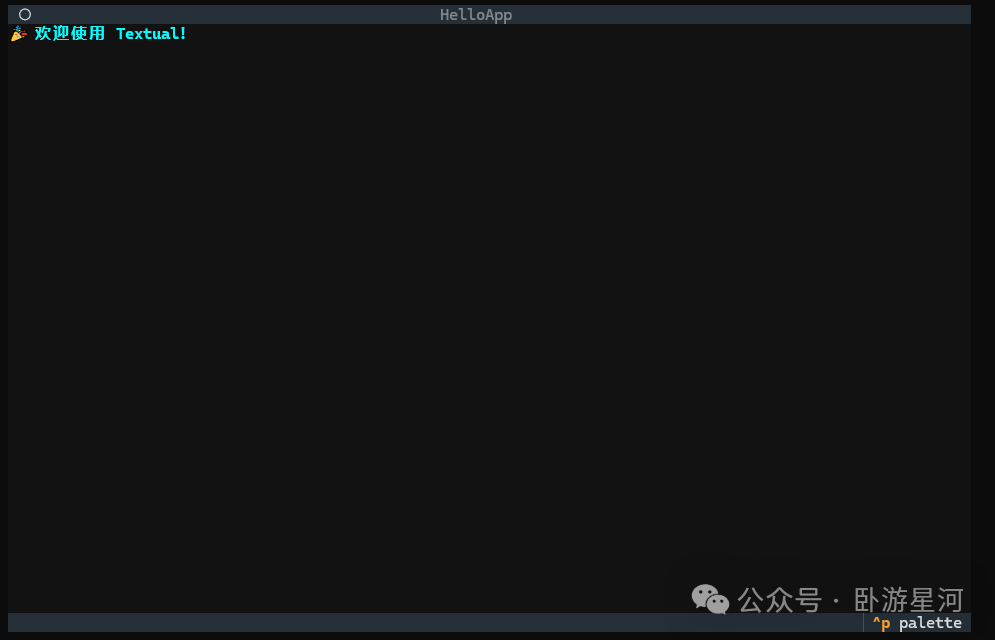
你将看到一个带有标题栏、居中彩色文本和底部状态栏的终端应用,并且文本颜色会每隔两秒自动切换。对于希望系统化学习此类终端应用开发与运维的读者,可以参考云栈社区的运维/DevOps板块中的相关实践。
三、关键功能实战演练
1. 组件化布局:像搭积木一样构建复杂界面
Textual提供了超过20种内置组件,并支持灵活的嵌套布局,让你可以快速组装出功能丰富的界面。
from textual.app import App
from textual.widgets import Button, Input, Label, DataTable
from textual.containers import Horizontal, Vertical

class DashboardApp(App):
    def compose(self):
        yield Vertical(
            Label("数据看板", classes="title"),
            Horizontal(
                Input(placeholder="输入查询条件...", id="search"),
                Button("查询", id="search_btn"),
            ),
            DataTable(id="table"),
            classes="container",
        )

    CSS = """
    .title {
        align: center top;
        color: yellow;
        text-style: bold;
        height: 3;
        margin-bottom: 1;
    }
    .container {
        width: 80%;
        height: 90%;
        border: solid yellow;
        padding: 1 2;
    }
    Horizontal {
        width: 100%;
        height: auto;
        margin-bottom: 1;
    }
    Input {
        width: 1fr;
    }
    Button {
        width: auto;
        margin-left: 1;
    }
    DataTable {
        height: 1fr;
    }
    """

if __name__ == "__main__":
    DashboardApp().run()
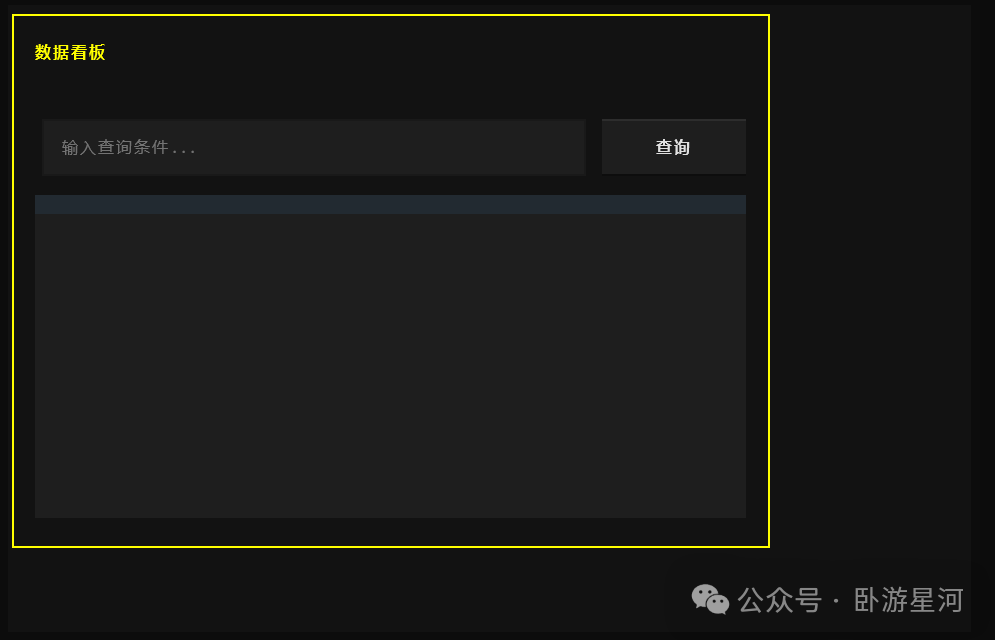
2. 事件处理:让界面真正“活”起来
Textual采用直观的事件驱动模型。通过定义 on_[组件]_[事件] 格式的方法,可以轻松响应用户的各类操作。
from textual.app import App
from textual.widgets import Button, Input, Label, DataTable
from textual.containers import Horizontal, Vertical

class DashboardApp(App):
    CSS = """
    .title {
        align: center top;
        color: yellow;
        text-style: bold;
        height: 3;
        margin-bottom: 1;
    }
    .container {
        width: 80%;
        height: 90%;
        border: solid yellow;
        padding: 1 2;
    }
    Horizontal {
        width: 100%;
        height: auto;
        margin-bottom: 1;
    }
    Input {
        width: 1fr;
    }
    Button {
        width: auto;
        margin-left: 1;
    }
    DataTable {
        height: 1fr;
    }
    """

    def compose(self):
        yield Vertical(
            Label("数据看板", classes="title"),
            Horizontal(
                Input(placeholder="输入查询条件...", id="search"),
                Button("查询", id="search_btn"),
            ),
            DataTable(id="table"),
            classes="container",
        )

    def on_mount(self):
        table = self.query_one("#table", DataTable)
        table.add_columns("ID", "名称", "状态")
        table.add_row("001", "任务A", "完成")
        table.add_row("002", "任务B", "进行中")

    def on_button_pressed(self, event: Button.Pressed):
        if event.button.id == "search_btn":
            search_val = self.query_one("#search", Input).value
            self.notify(f"正在查询:{search_val}", severity="information")

    def on_input_submitted(self, event: Input.Submitted):
        search_val = event.value
        self.notify(f"正在查询:{search_val}", severity="information")

if __name__ == "__main__":
    DashboardApp().run()
注意:上述代码演示了事件绑定与响应机制,并未实现实际的查询逻辑。
3. 异步集成:处理真实业务场景
Textual基于asyncio,这意味着你可以无缝集成网络请求、数据库查询等异步操作,而不会阻塞用户界面。
注意:运行以下代码需要先安装 httpx 库 (pip install httpx)。
import httpx
from textual.app import App
from textual.widgets import Button, Label

class WeatherApp(App):
    CSS = """
    #result {
        align: center middle;
        color: cyan;
    }
    """

    def compose(self):
        yield Button("获取杭州天气", id="fetch")
        yield Label("", id="result")

    async def on_button_pressed(self, event: Button.Pressed):
        if event.button.id == "fetch":
            result_label = self.query_one("#result", Label)
            result_label.update("加载中...")
            try:
                # 使用 wttr.in 服务,参数说明:0=仅当前天气, p=加边框, q=安静模式(无标题)
                url = "https://wttr.in/Hangzhou?0pq&lang=zh"
                headers = {"User-Agent": "curl/7.68.0"}

                async with httpx.AsyncClient(timeout=10.0) as client:
                    resp = await client.get(url, headers=headers)
                    resp.raise_for_status()

                    result_label.update(resp.text)

            except httpx.TimeoutException:
                result_label.update("请求超时,请检查网络")
            except httpx.RequestError as e:
                result_label.update(f"请求失败: {e}")
            except Exception as e:
                result_label.update(f"未知错误: {type(e).__name__}")

if __name__ == "__main__":
    WeatherApp().run()
四、注意事项与兼容性
- Python 版本要求:Textual 需要 Python 3.7 或更高版本,建议使用 3.8+ 以获得完整的异步特性支持。使用前请用
python --version 确认环境。
- 终端兼容性:为了获得最佳视觉效果,推荐在支持真彩色(True Color)的现代终端中使用,例如 Windows Terminal、iTerm2、Alacritty 等。如果必须在老旧终端中运行,可以通过设置环境变量
export TEXTUAL_COLOR_DEPTH=8 来降级兼容。
- CSS 样式差异:Textual 实现的 CSS 是 Web CSS 的一个子集,并非所有属性都支持。对于布局,建议优先使用
align、width、height 等核心属性。复杂的动画效果,可能更适合用 animate() 方法编程实现,而非依赖 CSS transition。
五、总结:Textual 的适用场景
Textual 是一个强大的工具,但它并非万能。明确其适用范围能帮助你做出更好的技术选型。
- ✅ 理想场景:
- 需要交互的 CLI 工具:例如配置向导、数据查看器、日志分析工具。
- 内部运维/监控面板:在服务器终端直接运行,无需部署复杂的 Web 服务。
- 教学演示项目:快速构建出视觉效果不错的演示程序,学习曲线平缓。
- ❌ 不推荐场景:
- 复杂的表单或富文本编辑:这类需求通常有更专业的 Web 或桌面 GUI 方案。
- 需要鼠标进行精细操作的场景:虽然 Textual 支持鼠标,但终端环境下的鼠标体验有限。
希望通过本文的实战介绍,你能感受到使用 Python 和 Textual 为命令行工具增添交互界面的便捷与高效。从简单的问候程序到集成网络请求的数据看板,Textual 让终端应用开发变得直观而有趣。如果你想深入研究更多框架细节或最佳实践,云栈社区的技术文档板块汇集了丰富的教程与源码解析,可供参考。
 发表于 2026-4-8 06:43:13
|
查看: 514|
回复: 0
发表于 2026-4-8 06:43:13
|
查看: 514|
回复: 0

