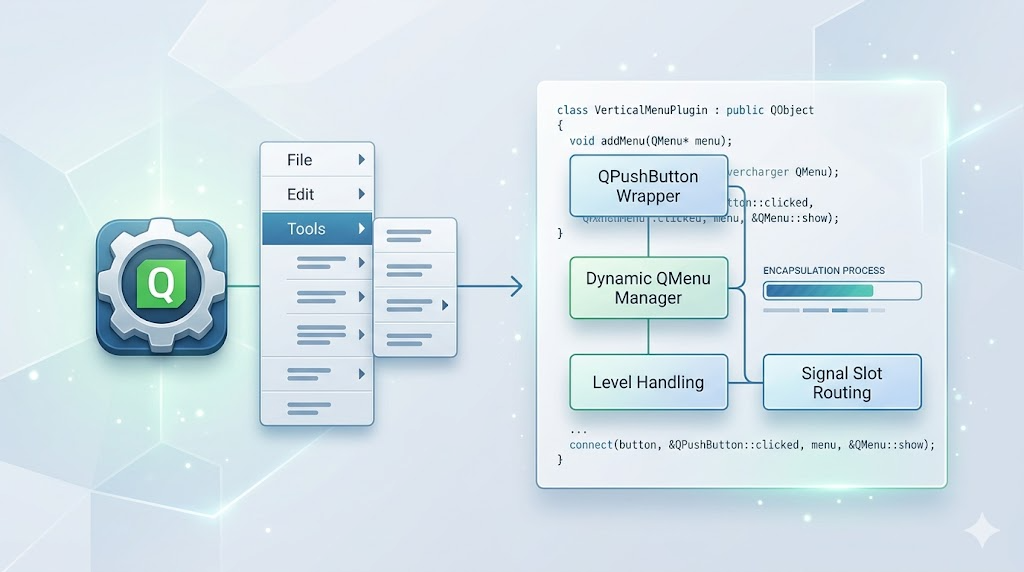
在之前的横向菜单实现中,我使用了 QMenuBar + QMenu 来完成顶部横向菜单。但在很多桌面应用中,左侧竖向菜单也很常见,比如后台管理工具、配置工具、桌面客户端侧边栏等。
这次我封装了一个新的竖向菜单插件:MenuPluginVerticalWidget。
它的核心目标是:
- 一级菜单使用
QPushButton 竖向排列。
- 二级及更深层级菜单使用
QMenu 实现。
- 菜单数据通过结构化数据传入。
- 插件内部递归解析菜单数据。
- 外部只关心点击结果,不关心菜单如何生成。
- 点击一级按钮后,按钮保持激活色;对应菜单关闭后恢复默认色。

先看个效果:
菜单数据结构
插件内部复用了一个简单的菜单节点结构:
struct MenuNode
{
    QString text;
    QList<MenuNode *> children;

    explicit MenuNode(const QString &menuText = QString(),
                      const QList<MenuNode *> &menuChildren = {})
        : text(menuText)
        , children(menuChildren)
    {
    }

    ~MenuNode()
    {
        qDeleteAll(children);
        children.clear();
    }

    MenuNode(const MenuNode &) = delete;
    MenuNode &operator=(const MenuNode &) = delete;
};
这个结构非常直观:
text 表示菜单显示文字。children 表示子菜单。children 为空时,表示这是一个可点击菜单项。children 不为空时,表示这是一个菜单分组。
不过对外暴露时,我没有直接要求业务层传 MenuNode*,而是定义了一个更轻量的 MenuDef:
struct MenuDef {
    QString key;
    QList<MenuDef> values = {};
};
使用时可以直接写成嵌套结构:
{
    {QStringLiteral("File"), {
        {QStringLiteral("New Project")},
        {QStringLiteral("Open Project")},
        {QStringLiteral("Export"), {
            {QStringLiteral("PNG")},
            {QStringLiteral("PDF")}
        }}
    }}
}
插件内部再把 MenuDef 转换成 MenuNode。
插件类设计
竖向菜单插件类定义如下:
#pragma once
#include<QHash>
#include<QWidget>
#include"menunode.h"
class QEvent;
class QMenu;
class QPushButton;
class QVBoxLayout;
class MenuPluginVerticalWidget : public QWidget
{
    Q_OBJECT
public:
    struct MenuDef {
        QString key;
        QList<MenuDef> values = {};
    };
    explicit MenuPluginVerticalWidget(QWidget *parent = nullptr);
    ~MenuPluginVerticalWidget() override;
    void setMenus(const QList<MenuDef> &menus);
signals:
    void actionTriggered(const QString &path);
private:
    QList<MenuNode *> buildMenusFromDef(const QList<MenuDef> &defs) const;
    QPushButton *createMenuButton(MenuNode *node);
    QMenu *createMenu(const QString &text, QWidget *parent) const;
    void configurePopupMenu(QMenu *menu) const;
    void rebuildMenus();
    void clearMenuData();
    void clearLayout();
    void setButtonMenuActive(QPushButton *button, bool active);
    void buildMenuLevel(QMenu *parentMenu, const QList<MenuNode *> &items, const QStringList &parentPath);
    QList<MenuNode *> m_menus;
    QHash<QObject *, QMenu *> m_buttonMenus;
    QHash<QMenu *, QPushButton *> m_menuButtons;
    QVBoxLayout *m_layout;
};
#include"menupluginverticalwidget.h"
#include<QAction>
#include<QLayoutItem>
#include<QMenu>
#include<QPoint>
#include<QPushButton>
#include<QStyle>
#include<QStyleFactory>
#include<QVBoxLayout>
namespace
{
QString joinPath(const QStringList &parts)
{
    return parts.join(QStringLiteral(" / "));
}
}
MenuPluginVerticalWidget::MenuPluginVerticalWidget(QWidget *parent)
    : QWidget(parent)
    , m_layout(new QVBoxLayout(this))
{
    m_layout->setContentsMargins(0, 0, 0, 0);
    m_layout->setSpacing(8);
    m_layout->addStretch();
    setStyleSheet(QStringLiteral(R"(
        QPushButton#verticalMenuButton {
            background: #ffffff;
            border: 1px solid #dbe2ea;
            border-radius: 10px;
            color: #334155;
            font-size: 14px;
            font-weight: 600;
            min-height: 38px;
            padding: 8px 14px;
            text-align: left;
        }
        QPushButton#verticalMenuButton:hover  {
            background: #eef2f7;
            color: #0f172a;
        }
        QPushButton#verticalMenuButton:pressed {
            background: #dbeafe;
            color: #1d4ed8;
        }
        QPushButton#verticalMenuButton[menuActive="true"] {
            background: #dbeafe;
            color: #1d4ed8;
        }
        QMenu {
            background-color: #ffffff;
            border: 1px solid #e2e8f0;
            border-radius: 8px;
            padding: 6px;
        }
        QMenu::item {
            background: transparent;
            color: #334155;
            padding: 8px 36px 8px 12px;
            border-radius: 6px;
        }
        QMenu::item:selected {
            background-color: #eff6ff;
            color: #1d4ed8;
        }
        QMenu::separator {
            height: 1px;
            background: #e2e8f0;
            margin: 6px 10px;
        }
    )"));
}
MenuPluginVerticalWidget::~MenuPluginVerticalWidget()
{
    clearMenuData();
}
void MenuPluginVerticalWidget::setMenus(const QList<MenuDef> &menus)
{
    clearMenuData();
    m_menus = buildMenusFromDef(menus);
    rebuildMenus();
}
QList<MenuNode *> MenuPluginVerticalWidget::buildMenusFromDef(const QList<MenuDef> &defs) const
{
    QList<MenuNode *> nodes;
    for (const MenuDef &def : defs) {
        nodes.append(new MenuNode(def.key, buildMenusFromDef(def.values)));
    }
    return nodes;
}
QPushButton *MenuPluginVerticalWidget::createMenuButton(MenuNode *node)
{
    auto *button = new QPushButton(node->text, this);
    button->setObjectName(QStringLiteral("verticalMenuButton"));
    button->setCursor(Qt::PointingHandCursor);
    button->setFocusPolicy(Qt::NoFocus);
    button->setCheckable(false);
    button->setAutoDefault(false);
    button->setDefault(false);
    button->setProperty("menuActive", false);
    const QStringList rootPath{node->text};
    if (node->children.isEmpty()) {//没有子菜单,直接触发 action
        connect(button, &QPushButton::clicked, this, [this, rootPath]() {
            emit actionTriggered(joinPath(rootPath));
        });
        return button;
    }
    //创建菜单按钮
    auto *menu = createMenu(node->text, button);
    // 创建菜单项并连接信号
    buildMenuLevel(menu, node->children, rootPath);
    // 保存菜单和按钮的关联关系
    m_buttonMenus.insert(button, menu);
    // 保存菜单和按钮的关联关系
    m_menuButtons.insert(menu, button);
    // 菜单按钮点击时,显示菜单
    connect(button, &QPushButton::clicked, this, [this, button, menu]() {
        for (QPushButton *activeButton : m_menuButtons) {
            setButtonMenuActive(activeButton, false);
        }
        setButtonMenuActive(button, true);
        menu->popup(button->mapToGlobal(QPoint(button->width(), 0)));
    });
    // 菜单隐藏时取消菜单激活状态
    connect(menu, &QMenu::aboutToHide, this, [this, button]() {
        setButtonMenuActive(button, false);
    });
    return button;
}
QMenu *MenuPluginVerticalWidget::createMenu(const QString &text, QWidget *parent) const
{
    auto *menu = new QMenu(text, parent);
    configurePopupMenu(menu);
    return menu;
}
void MenuPluginVerticalWidget::configurePopupMenu(QMenu *menu) const
{
    if (menu == nullptr) {
        return;
    }
    menu->setAttribute(Qt::WA_TranslucentBackground, true);
    menu->setWindowFlag(Qt::FramelessWindowHint, true);
    menu->setWindowFlag(Qt::NoDropShadowWindowHint, true);
    menu->setStyle(QStyleFactory::create(QStringLiteral("Fusion")));
}
void MenuPluginVerticalWidget::rebuildMenus()
{
    clearLayout();
    for (MenuNode *node : m_menus) {
        if (node == nullptr || node->text.isEmpty()) {
            continue;
        }
        m_layout->addWidget(createMenuButton(node));
    }
    m_layout->addStretch();
}
void MenuPluginVerticalWidget::clearMenuData()
{
    clearLayout();
    m_buttonMenus.clear();
    m_menuButtons.clear();
    qDeleteAll(m_menus);
    m_menus.clear();
}
void MenuPluginVerticalWidget::clearLayout()
{
    m_buttonMenus.clear();
    m_menuButtons.clear();
    while (QLayoutItem *item = m_layout->takeAt(0)) {
        if (QWidget *widget = item->widget()) {
            delete widget;
        }
        delete item;
    }
}
void MenuPluginVerticalWidget::setButtonMenuActive(QPushButton *button, bool active)
{
    if (button == nullptr) {
        return;
    }
    button->setProperty("menuActive", active);
    button->style()->unpolish(button);// 先取消样式,让属性变化生效
    button->style()->polish(button);// 再重新应用样式
    button->update(); // 最后更新界面
}
void MenuPluginVerticalWidget::buildMenuLevel(QMenu *parentMenu, const QList<MenuNode *> &items, const QStringList &parentPath)
{
    for (MenuNode *node : items) {
        if (node == nullptr || node->text.isEmpty()) {
            continue;
        }
        const QStringList currentPath = parentPath + QStringList{node->text};
        if (!node->children.isEmpty()) {
            auto *subMenu = createMenu(node->text, parentMenu);
            parentMenu->addMenu(subMenu);
            buildMenuLevel(subMenu, node->children, currentPath);
            continue;
        }
        auto *action = parentMenu->addAction(node->text);
        connect(action, &QAction::triggered, this, [this, currentPath]() {
            emit actionTriggered(joinPath(currentPath));
        });
    }
}
这里的职责划分比较清晰:
setMenus():外部入口,接收菜单数据。buildMenusFromDef():把外部数据转换成内部菜单节点。createMenuButton():创建一级竖向按钮。buildMenuLevel():递归创建多级 QMenu。actionTriggered():对外通知菜单点击路径。setButtonMenuActive():控制一级按钮激活状态。
竖向菜单的一级入口使用 QPushButton:
QPushButton *MenuPluginVerticalWidget::createMenuButton(MenuNode *node)
{
    auto *button = new QPushButton(node->text, this);
    button->setObjectName(QStringLiteral("verticalMenuButton"));
    button->setCursor(Qt::PointingHandCursor);
    button->setFocusPolicy(Qt::NoFocus);
    button->setCheckable(false);
    button->setAutoDefault(false);
    button->setDefault(false);
    button->setProperty("menuActive", false);

    const QStringList rootPath{node->text};

    if (node->children.isEmpty()) {
        connect(button, &QPushButton::clicked, this, [this, rootPath]() {
            emit actionTriggered(joinPath(rootPath));
        });
        return button;
    }

    auto *menu = createMenu(node->text, button);
    buildMenuLevel(menu, node->children, rootPath);

    m_buttonMenus.insert(button, menu);
    m_menuButtons.insert(menu, button);

    connect(button, &QPushButton::clicked, this, [this, button, menu]() {
        for (QPushButton *activeButton : m_menuButtons) {
            setButtonMenuActive(activeButton, false);
        }

        setButtonMenuActive(button, true);
        menu->popup(button->mapToGlobal(QPoint(button->width(), 0)));
    });

    connect(menu, &QMenu::aboutToHide, this, [this, button]() {
        setButtonMenuActive(button, false);
    });

    return button;
}
这里分两种情况:
如果一级菜单没有子菜单,点击按钮后直接触发:
emit actionTriggered(joinPath(rootPath));
如果一级菜单有子菜单,则创建一个 QMenu,点击按钮后在按钮右侧弹出。
多级菜单递归生成
子菜单通过递归生成:
void MenuPluginVerticalWidget::buildMenuLevel(QMenu *parentMenu,
                                              const QList<MenuNode *> &items,
                                              const QStringList &parentPath)
{
    for (MenuNode *node : items) {
        if (node == nullptr || node->text.isEmpty()) {
            continue;
        }

        const QStringList currentPath = parentPath + QStringList{node->text};

        if (!node->children.isEmpty()) {
            auto *subMenu = createMenu(node->text, parentMenu);
            parentMenu->addMenu(subMenu);
            buildMenuLevel(subMenu, node->children, currentPath);
            continue;
        }

        auto *action = parentMenu->addAction(node->text);
        connect(action, &QAction::triggered, this, [this, currentPath]() {
            emit actionTriggered(joinPath(currentPath));
        });
    }
}
核心规则依然很简单:
有 children:创建 QMenu
无 children:创建 QAction
菜单点击后会返回完整路径,例如:
File / Export / More Formats / JSON Data
这样业务层可以通过路径判断用户点击了哪个菜单项。
按钮激活状态
竖向菜单有一个细节:当点击一级按钮并打开二级菜单时,按钮应该保持高亮状态。否则用户很难判断当前打开的是哪个一级菜单。
但是 QPushButton:pressed 是瞬时状态,鼠标松开后就会恢复,不能满足需求。
所以这里使用动态属性:
button->setProperty("menuActive", active);
打开菜单时:
setButtonMenuActive(button, true);
菜单关闭时:
setButtonMenuActive(button, false);
具体实现:
void MenuPluginVerticalWidget::setButtonMenuActive(QPushButton *button, bool active)
{
    if (button == nullptr) {
        return;
    }
    button->setProperty("menuActive", active);
    button->style()->unpolish(button);// 先取消样式,让属性变化生效
    button->style()->polish(button);// 再重新应用样式
    button->update(); // 最后更新界面
}
QSS 中通过属性选择器控制样式:
 QPushButton#verticalMenuButton[menuActive="true"] {
            background: #dbeafe;
            color: #1d4ed8;
        }
这样按钮高亮状态就不再依赖鼠标按压,而是由菜单是否打开决定。
样式设计
一级按钮样式:
 QPushButton#verticalMenuButton {
            background: #ffffff;
            border: 1px solid #dbe2ea;
            border-radius: 10px;
            color: #334155;
            font-size: 14px;
            font-weight: 600;
            min-height: 38px;
            padding: 8px 14px;
            text-align: left;
        }
        QPushButton#verticalMenuButton:hover  {
            background: #eef2f7;
            color: #0f172a;
        }
        QPushButton#verticalMenuButton:pressed {
            background: #dbeafe;
            color: #1d4ed8;
        }
        QPushButton#verticalMenuButton[menuActive="true"] {
            background: #dbeafe;
            color: #1d4ed8;
        }
菜单弹窗样式:
 QMenu {
            background-color: #ffffff;
            border: 1px solid #e2e8f0;
            border-radius: 8px;
            padding: 6px;
        }
        QMenu::item {
            background: transparent;
            color: #334155;
            padding: 8px 36px 8px 12px;
            border-radius: 6px;
        }
        QMenu::item:selected {
            background-color: #eff6ff;
            color: #1d4ed8;
        }
        QMenu::separator {
            height: 1px;
            background: #e2e8f0;
            margin: 6px 10px;
        }
样式和行为是分开的:
- QSS 负责视觉表现。
- C++ 负责菜单树构建和状态切换。
最后是使用示例:MainWindow
demo代码如下:
#pragma once
#include<QMainWindow>
class QLabel;
class MenuPluginVerticalWidget;
class MainWindow2 : public QMainWindow
{
public:
    explicit MainWindow2(QWidget *parent = nullptr);
private:
    void buildUi();
    void handleAction(const QString &path);
    static QString buildStyleSheet();
    QLabel *m_currentPathLabel;
    QLabel *m_exampleLabel;
    MenuPluginVerticalWidget *m_menuWidget;
};
#include"mainwindow.h"
#include"menupluginverticalwidget.h"
#include<QFrame>
#include<QHBoxLayout>
#include<QLabel>
#include<QStatusBar>
#include<QVBoxLayout>
#include<QWidget>
MainWindow2::MainWindow2(QWidget *parent)
    : QMainWindow(parent)
    , m_currentPathLabel(nullptr)
    , m_exampleLabel(nullptr)
    , m_menuWidget(nullptr)
{
    buildUi();
    setStyleSheet(buildStyleSheet());
    statusBar()->showMessage(QStringLiteral(" 垂直菜单插件已就绪"), 3000);
}
void MainWindow2::buildUi()
{
    resize(1080, 640);
    setWindowTitle(QStringLiteral("Qt Vertical Menu Plugin Demo"));
    auto *centralWidget = new QWidget(this);
    auto *rootLayout = new QHBoxLayout(centralWidget);
    rootLayout->setContentsMargins(28, 20, 28, 28);
    rootLayout->setSpacing(18);
    auto *sidePanel = new QFrame(centralWidget);
    sidePanel->setObjectName(QStringLiteral("sidePanel"));
    auto *sideLayout = new QVBoxLayout(sidePanel);
    sideLayout->setContentsMargins(16, 16, 16, 16);
    sideLayout->setSpacing(14);
    auto *titleLabel = new QLabel(QStringLiteral("Vertical Menu"), sidePanel);
    titleLabel->setObjectName(QStringLiteral("sideTitle"));
    m_menuWidget = new MenuPluginVerticalWidget(sidePanel);
    m_menuWidget->setMenus({
        {QStringLiteral("File"), {
            {QStringLiteral("New Project")},
            {QStringLiteral("Open Project")},
            {QStringLiteral("Export"), {
                {QStringLiteral("Export as PNG")},
                {QStringLiteral("Export as PDF")},
                {QStringLiteral("More Formats"), {
                    {QStringLiteral("CSV Data")},
                    {QStringLiteral("JSON Data")},
                    {QStringLiteral("Image Assets"), {
                        {QStringLiteral("Thumbnail")},
                        {QStringLiteral("Full Resolution")}
                    }}
                }}
            }},
            {QStringLiteral("Exit")}
        }},
        {QStringLiteral("Edit"), {
            {QStringLiteral("Undo")},
            {QStringLiteral("Redo")},
            {QStringLiteral("Preferences"), {
                {QStringLiteral("Theme"), {
                    {QStringLiteral("Light")},
                    {QStringLiteral("Dark")}
                }},
                {QStringLiteral("Language"), {
                    {QStringLiteral("Chinese")},
                    {QStringLiteral("English")}
                }}
            }}
        }},
        {QStringLiteral("View"), {
            {QStringLiteral("Refresh View")},
            {QStringLiteral("Panels"), {
                {QStringLiteral("Assets Panel")},
                {QStringLiteral("Properties Panel")},
                {QStringLiteral("Developer Tools"), {
                    {QStringLiteral("Log Console")},
                    {QStringLiteral("Network Requests")}
                }}
            }}
        }},
        {QStringLiteral("Help"), {
            {QStringLiteral("Documentation")},
            {QStringLiteral("Shortcuts")},
            {QStringLiteral("About"), {
                {QStringLiteral("Version")},
                {QStringLiteral("License")}
            }}
        }}
    });
    connect(m_menuWidget, &MenuPluginVerticalWidget::actionTriggered, this, &MainWindow2::handleAction);
    sideLayout->addWidget(titleLabel);
    sideLayout->addWidget(m_menuWidget, 1);
    auto *contentCard = new QFrame(centralWidget);
    contentCard->setObjectName(QStringLiteral("contentCard"));
    auto *contentLayout = new QVBoxLayout(contentCard);
    contentLayout->setContentsMargins(28, 24, 28, 24);
    contentLayout->setSpacing(14);
    auto *sectionTitle = new QLabel(QStringLiteral("垂直菜单交互预览"), contentCard);
    sectionTitle->setObjectName(QStringLiteral("sectionTitle"));
    auto *introLabel = new QLabel(
        QStringLiteral("这个菜单插件使用QPushButton作为第一级菜单,每个按钮打开一个QMenu,嵌套菜单是递归构建的。"),
        contentCard);
    introLabel->setObjectName(QStringLiteral("mutedLabel"));
    introLabel->setWordWrap(true);
    m_currentPathLabel = new QLabel(QStringLiteral("当前操作:选择垂直菜单项"), contentCard);
    m_currentPathLabel->setObjectName(QStringLiteral("pathLabel"));
    m_currentPathLabel->setWordWrap(true);
    m_exampleLabel = new QLabel(QStringLiteral("示例路径: File / Export / More Formats / JSON Data"), contentCard);
    m_exampleLabel->setObjectName(QStringLiteral("mutedLabel"));
    m_exampleLabel->setWordWrap(true);
    contentLayout->addWidget(sectionTitle);
    contentLayout->addWidget(introLabel);
    contentLayout->addSpacing(6);
    contentLayout->addWidget(m_currentPathLabel);
    contentLayout->addWidget(m_exampleLabel);
    contentLayout->addStretch();
    rootLayout->addWidget(sidePanel);
    rootLayout->addWidget(contentCard, 1);
    setCentralWidget(centralWidget);
}
void MainWindow2::handleAction(const QString &path)
{
    m_currentPathLabel->setText(QStringLiteral("当前触发: %1").arg(path));
    m_exampleLabel->setText(QStringLiteral("最后触发: %1").arg(path));
    statusBar()->showMessage(QStringLiteral("已触发: %1").arg(path), 2500);
}
QString MainWindow2::buildStyleSheet()
{
    return QStringLiteral(R"(
        QMainWindow {
            background: #f4f7fb;
        }
        QFrame#sidePanel,
        QFrame#contentCard {
            background: #ffffff;
            border: 1px solid #e2e8f0;
            border-radius: 18px;
        }
        QFrame#sidePanel {
            min-width: 220px;
            max-width: 280px;
        }
        QLabel#sideTitle {
            color: #0f172a;
            font-size: 20px;
            font-weight: 700;
            padding: 2px 4px 8px 4px;
        }
        QLabel#sectionTitle {
            color: #0f172a;
            font-size: 24px;
            font-weight: 700;
        }
        QLabel#pathLabel {
            color: #1d4ed8;
            font-size: 16px;
            font-weight: 600;
            background: #eff6ff;
            border: 1px solid #bfdbfe;
            border-radius: 12px;
            padding: 12px 14px;
        }
        QLabel#mutedLabel {
            color: #475569;
            font-size: 14px;
        }
        QStatusBar {
            background: #ffffff;
            color: #475569;
            border-top: 1px solid #e2e8f0;
        }
    )");
}
总结
MenuPluginVerticalWidget 解决的是一个常见场景:左侧竖向一级菜单 + 右侧弹出多级菜单。
它的核心特点是:
- 使用
QPushButton 实现一级竖向菜单。
- 使用
QMenu 实现二级和多级菜单。
- 菜单数据通过嵌套结构传入。
- 插件内部递归生成菜单。
- 点击叶子菜单时向外发送完整路径。
- 一级按钮在菜单打开期间保持激活色。
- 菜单关闭后按钮恢复默认状态。
相比直接在 MainWindow 中手写菜单,这种方式更适合工程化使用。以后如果菜单来自配置文件、接口、数据库,只需要构造对应的 MenuDef 数据,然后传给插件即可,界面层不需要关心菜单是几级、如何递归生成。这种将界面逻辑与业务数据分离的设计模式,是构建可维护、可扩展的C++桌面应用的关键实践之一。
希望这个竖向菜单插件的封装思路能对你有所启发。如果你在实现自己的Qt桌面应用时遇到了类似的界面需求,不妨尝试一下这种工程化的方法。也欢迎在云栈社区分享你的实现心得或提出改进建议。
 发表于 2026-4-23 02:43:15
|
查看: 374|
回复: 0
发表于 2026-4-23 02:43:15
|
查看: 374|
回复: 0

