想要拥有一个功能强大、外观酷炫的命令行终端吗?本文将详细介绍如何在Windows系统上,基于Windows Terminal和PowerShell 7,通过一系列工具和配置实现终端的美化与功能增强。
最终效果预览:
核心工具安装与配置
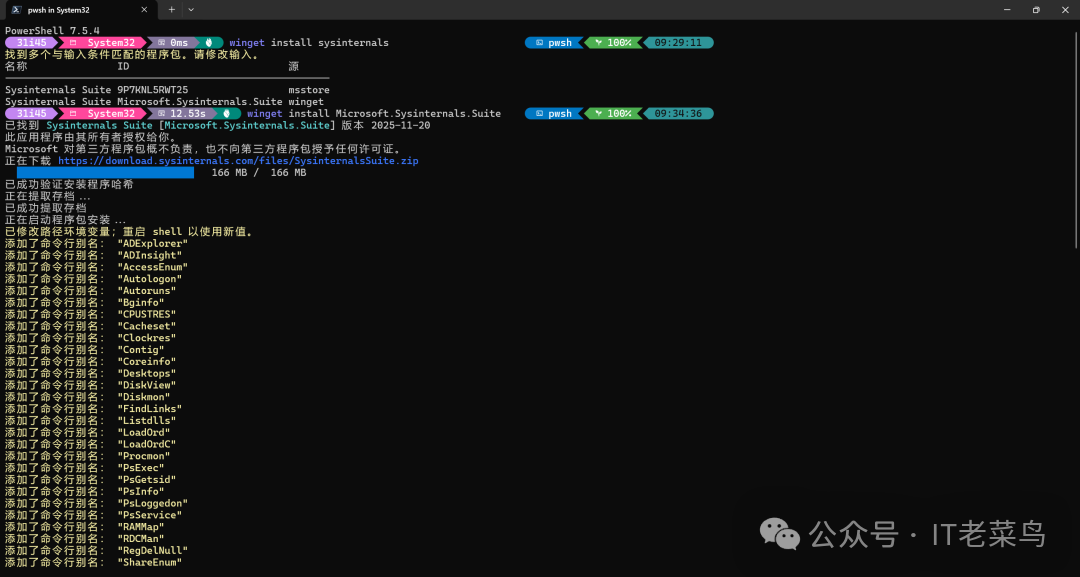
首先,确保你已安装PowerShell 7。随后,通过Windows自带的包管理器 winget 执行以下命令,完成基础环境的搭建。
# 1. 安装 Sysinternals 套件 (Windows高级工具集)
winget install sysinternals
# 或使用明确的包名
winget install Microsoft.Sysinternals.Suite

# 2. 搜索并安装 Oh My Posh (终端主题引擎)
winget search oh-my-posh
winget install JanDeDobbeleer.OhMyPosh

# 3. 下载Oh My Posh主题配置文件
# 从GitHub下载名为 `jandedobbeleer.omp.json` 的主题文件,并放置于你的PowerShell配置目录,例如:
# C:\Users\<YourUserName>\Documents\PowerShell\

# 4. 验证Oh My Posh安装
Get-Command oh-my-posh -ErrorAction SilentlyContinue

# 5. 安装等宽字体 (推荐Cascadia Code)
# 请从官方渠道下载并安装Cascadia Code字体,以确保终端图标正常显示。
创建并配置PowerShell Profile
$PROFILE 文件是PowerShell启动时自动加载的脚本,是自定义行为的核心。
-
设置Profile路径并创建文件
# 设置环境变量指向你的Profile文件
Set-Item -Path Variable:PROFILE -Value "C:\Users\<YourUserName>\Documents\PowerShell\Microsoft.PowerShell_profile.ps1"
# 使用记事本或其他编辑器创建并编辑该文件
notepad $PROFILE
-
为Profile脚本签名 (解决执行策略限制)
为了避免因PowerShell执行策略导致的脚本无法运行问题,可以为你的Profile脚本添加数字签名。
# 创建自签名证书 (将CN=YourName改为你的标识)
$cert = New-SelfSignedCertificate -Type CodeSigningCert -Subject "CN=YourName" -KeyUsage DigitalSignature -CertStoreLocation "Cert:\CurrentUser\My" -KeyExportPolicy Exportable

# 将证书添加到“受信任的根证书颁发机构”
$rootStore = Get-Item "Cert:\CurrentUser\Root"
$rootStore.Open("ReadWrite")
$rootStore.Add($cert)
$rootStore.Close()

# 查找刚创建的代码签名证书
$cert = Get-ChildItem -Path "Cert:\CurrentUser\My" | Where-Object { $_.Subject -eq "CN=YourName" -and $_.EnhancedKeyUsageList -match "Code Signing" }

# 使用证书对Profile脚本进行签名
Set-AuthenticodeSignature -FilePath "C:\Users\<YourUserName>\Documents\PowerShell\Microsoft.PowerShell_profile.ps1" -Certificate $cert
配置Windows Terminal
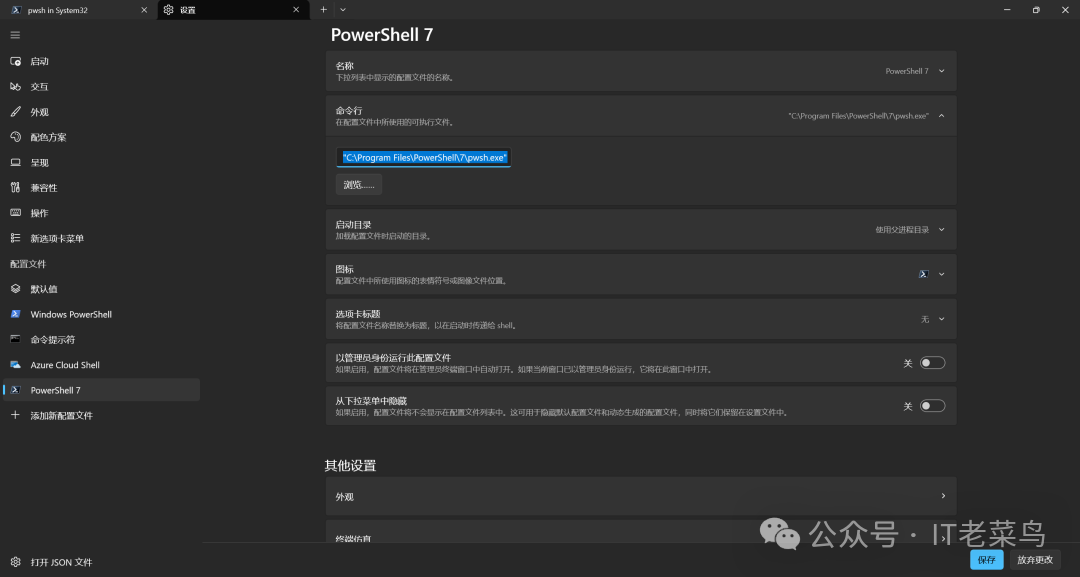
打开Windows Terminal,进入设置界面。
- 在“默认值”或特定的PowerShell 7配置文件中,将“命令行”设置为
pwsh.exe 的完整路径(通常是 C:\Program Files\PowerShell\7\pwsh.exe)。
- 在“外观”选项中,选择你安装的Cascadia Code字体。
高级Profile脚本示例
将以下内容写入你的 Microsoft.PowerShell_profile.ps1 文件,这是一个针对PowerShell 7优化的高性能配置模板。
# 启动性能计时
$global:profileLoadStart = [System.Diagnostics.Stopwatch]::StartNew()
# 确保控制台输出编码为UTF-8
[Console]::OutputEncoding = [System.Text.UTF8Encoding]::new()

# 配置 PSReadLine (命令历史与补全增强)
Import-Module PSReadLine
# 设置语法高亮颜色
Set-PSReadLineOption -Colors @{
    InlinePrediction = '#808080'
    Command          = '#8181f7'
    Parameter        = '#FFA500'
    String           = '#24c22b'
    Operator         = '#ce6700'
    Variable         = '#d670d6'
    Number           = '#79c0ff'
    Type             = '#f78c6c'
    Comment          = '#6A9955'
    Error            = '#ff5555'
} -PredictionSource HistoryAndPlugin -PredictionViewStyle InlineView

# 绑定实用快捷键
Set-PSReadLineKeyHandler -Key "Ctrl+RightArrow" -Function ForwardWord
Set-PSReadLineKeyHandler -Key "Ctrl+LeftArrow" -Function BackwardWord
Set-PSReadLineKeyHandler -Key "Tab" -Function MenuComplete
Set-PSReadLineKeyHandler -Key "Ctrl+r" -Function ReverseSearchHistory
Set-PSReadLineKeyHandler -Key "UpArrow" -Function HistorySearchBackward
Set-PSReadLineKeyHandler -Key "DownArrow" -Function HistorySearchForward
Set-PSReadLineKeyHandler -Key "Ctrl+v" -Function Paste
Set-PSReadLineKeyHandler -Key "Ctrl+u" -Function BackwardDeleteLine
Set-PSReadLineKeyHandler -Key "Ctrl+w" -Function BackwardKillWord

# 初始化 Oh My Posh 主题
$profileDir = Split-Path $PROFILE -Parent
$ompThemePath = Join-Path $profileDir "jandedobbeleer.omp.json"
# 加载Oh My Posh并应用主题配置
oh-my-posh init pwsh --config $ompThemePath | Invoke-Expression

# 自定义函数:获取Sysinternals工具在线列表
function Get-SysinternalsList {
    (Invoke-WebRequest -Uri "http://live.sysinternals.com/" -UseBasicParsing).Links |
        Where-Object { $_.href -match "\.exe$" } |
        ForEach-Object { $_.href } |
        Sort-Object
}
# 设置别名
New-Alias -Name sysinternals-list -Value Get-SysinternalsList
New-Alias -Name syslist -Value Get-SysinternalsList

# 性能报告 (可选,调试用)
$global:profileLoadTime = $global:profileLoadStart.ElapsedMilliseconds
# Write-Host "Profile loaded in $global:profileLoadTime ms" -ForegroundColor Yellow
配置完成后,重启Windows Terminal,选择PowerShell 7配置文件,你就能看到一个兼具美感与强大功能的现代化命令行环境。通过winget管理工具、精细化的PSReadLine配置以及强大的Oh My Posh主题引擎,你的日常运维/DevOps和Shell操作效率将大大提升。 |  发表于 2025-12-16 18:21:26
|
查看: 324|
回复: 0
发表于 2025-12-16 18:21:26
|
查看: 324|
回复: 0

